Installing WordPress on Windows Server 2025 requires setting up the core stack: IIS (Internet Information Services), MySQL/MariaDB, and PHP. The fastest and most reliable way to host it natively on a Windows server is by using these components manually.
DOWNLOAD ALL THE REQUIREMENT FILE :

https://drive.google.com/drive/folders/1AewvBCiN-oc9vkRJH7l-FoPrTpwjKt-R?usp=sharing

1. INSTALL MARIADB ... .

AFTER THAT RUN COMMAND PROMPT AS ADMIN AND PUT :

setx PATH "%PATH%;C:\Program Files\MariaDB 12.3\bin

1.1 CLOSE CMD.EXE AND REOPEN IT AS NONE ADMIN ... .


SINCE ROOT PASSWORD ALREADY BEEN CHOOSEN DURING INSTALL IS FINE THEN ... .

2. CREATE DATABASE FOR OUR WORDPRESS OR OTHER CMS LIKE JOOMLA OR DRUPAL OR THE REST THAT NEED DATABASE ... .

2.1 COMMAND : mariadb -u root -p which is your password that you type during setup ... .

C:\Users\skraito>mariadb -u root -p
Enter password: ********
Welcome to the MariaDB monitor.  Commands end with ; or \g.
Your MariaDB connection id is 4
Server version: 12.3.2-MariaDB MariaDB Server

Copyright (c) 2000, 2018, Oracle, MariaDB Corporation Ab and others.

Type 'help;' or '\h' for help. Type '\c' to clear the current input statement.

MariaDB [(none)]>

2.2 CREATE DATABASE EXAMPLE FOR THIS IS WORDPRESS DATABASE ... .

CREATE DATABASE wordpressdb;
CREATE USER 'wp_user'@'localhost' IDENTIFIED BY 'YourSecurePassword';
GRANT ALL PRIVILEGES ON wordpressdb.* TO 'wp_user'@'localhost';
FLUSH PRIVILEGES;
EXIT;
3. To set up PHP on Internet Information Services (IIS), you must configure IIS with CGI support, download the Non-Thread Safe (NTS) version of PHP, and bind them together using a FastCGI Handler Mapping.
Follow this step-by-step guide to complete the manual setup:
1. Enable IIS and CGI Feature
You need to ensure IIS and its CGI module are installed on your Windows machine.
- On Windows 10 / 11:
- Open the Start menu, type Turn Windows features on or off, and press Enter.
- Scroll down and check the box for Internet Information Services.
- Expand World Wide Web Services > Application Development Features.
- Check the box for CGI and click OK to install.
- On Windows Server:
- Open Server Manager and click Add Roles and Features.
- Select the Web Server (IIS) role.
- Under Role Services, navigate to Web Server > Application Development and enable CGI.
2. Download and Extract PHP
IIS requires the Non-Thread Safe version of PHP to communicate efficiently via FastCGI.
- Download the latest Visual C++ Redistributable package from Microsoft and install it. https://drive.google.com/drive/folders/1AewvBCiN-oc9vkRJH7l-FoPrTpwjKt-R?usp=sharing
- Visit the PHP for Windows Download Page. https://drive.google.com/drive/folders/1AewvBCiN-oc9vkRJH7l-FoPrTpwjKt-R?usp=sharing
- Locate the Non-Thread Safe (NTS) build matching your architecture (usually x64).
- https://drive.google.com/drive/folders/1AewvBCiN-oc9vkRJH7l-FoPrTpwjKt-R?usp=sharing
- Download the Zip file and extract its contents to a permanent root folder, such as
C:\PHP\ - OPEN CMD.EXE AS ADMIN AND TYPE setx PATH “%PATH%;C:\PHP
C:\Windows\System32>setx PATH “%PATH%;C:\PHP
SUCCESS: Specified value was saved.
C:\Windows\System32>
CLOSE CMD.EXE AND REOPEN … .
3. Configure the php.ini File
- Go to your
C:\PHP\folder and rename the filephp.ini-productiontophp.ini. - Open
php.iniin a text editor (like Notepad) and update or uncomment (remove the;) the following lines to optimize it for IIS:fastcgi.impersonate = 1cgi.fix_pathinfo = 1(or0depending on your security policy)cgi.force_redirect = 0extension_dir = "ext"
4. Add PHP to the System Path Environment Variable
This allows Windows and IIS to recognize PHP globally.
- Search for Edit the system environment variables in the Windows search bar and open it.
- Click Environment Variables.
- Under System Variables, select Path and click Edit.
- Click New and type your PHP directory path:
C:\PHP\. - Click OK to save and exit all windows.
- OPEN CMD.EXE AS ADMIN AND TYPE setx PATH “%PATH%;C:\PHP
C:\Windows\System32>setx PATH “%PATH%;C:\PHP
SUCCESS: Specified value was saved.
C:\Windows\System32>
CLOSE CMD.EXE AND REOPEN … .
5. Configure IIS Handler Mappings
This step teaches IIS how to process .php files.
- Open IIS Manager (type
inetmgr.exein the Run dialog or search bar). - Select your server name in the left Connections panel.
- Double-click Handler Mappings in the center panel.
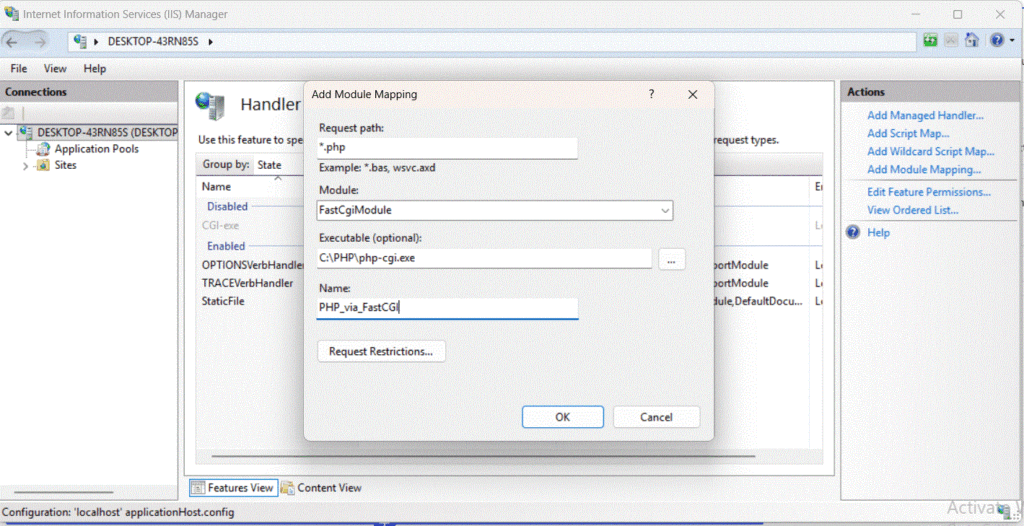
- Click Add Module Mapping… in the right Actions panel.
- Fill out the fields with the exact values below:
- Request path:
*.php - Module: Select
FastCgiModulefrom the dropdown - Executable:
C:\PHP\php-cgi.exe - Name:
PHP_via_FastCGI
- Request path:
- Click OK, then click Yes to confirm creating the FastCGI application mapping.
6. Set the Default Document
- Go back to your server node dashboard in IIS Manager.
- Double-click Default Document.
- Click Add… in the right pane, type
index.php, and click OK.
7. Test the Setup
- Navigate to the default IIS web directory at
C:\inetpub\wwwroot\. - Create a new text file and name it
info.php(make sure the extension is.php, not.txt). - Paste the following line of code inside the file and save it:php
<?php phpinfo(); ?>Use code with caution. - Open an elevated Command Prompt or PowerShell and type
iisresetto clear the server cache. - Open your web browser and navigate to
http://localhost/info.php.
If the setup was successful, you will see a webpage showing your detailed PHP configuration details.
EXPLANATION : A FastCGI Handler Mapping tells your web server (most commonly Microsoft IIS) to route specific file extensions (like *.php or *.py) to an external application process pool for faster execution. This mechanism bridges static web servers and dynamic scripting environments by recycling backend processes instead of launching a new one for every incoming request.
How to Configure FastCGI Handler Mapping in IIS
1. Enable CGI Feature
Before mapping, you must ensure the CGI role service is active on your Windows machine.
- Windows Server: Open Server Manager, navigate to Add Roles and Features, expand Web Server (IIS) → Web Server → Application Development, and check CGI.
- Windows Desktop: Open Turn Windows features on or off, expand Internet Information Services → World Wide Web Services → Application Development Features, and check CGI.
2. Create the Module Mapping
- Open the Internet Information Services (IIS) Manager.
- In the left Connections pane, click on your server name (for global mapping) or a specific website.
- In the center pane, double-click Handler Mappings.
- In the right Actions pane, click Add Module Mapping….
- Fill out the dialog box fields exactly as needed for your script framework:
| Field | Example Value (for PHP) | Description |
|---|---|---|
| Request path | *.php | The file extension triggering the handler. |
| Module | FastCgiModule | Choose this option from the dropdown menu. |
| Executable | C:\php\php-cgi.exe | Full file path to your language executable engine. |
| Name | PHP_via_FastCGI | A friendly, unique identifier for this mapping. |
- Click OK.
- When prompted with “Do you want to create a FastCGI application for this executable?”, click Yes. This automatically populates the process pool settings.
Alternative: Configuration via web.config
If you prefer configuring your application locally or through code deployments, you can insert the rule directly into the application’s root web.config file within the <system.webServer> section:
xml
<configuration>
  <system.webServer>
    <handlers>
      <add name="PHP_via_FastCGI"
           path="*.php"
           verb="*"
           modules="FastCgiModule"
           scriptProcessor="C:\php\php-cgi.exe"
           resourceType="Either" />
    </handlers>
  </system.webServer>
</configuration>
Use code with caution.
Common Troubleshooting Tips
- Non-Thread Safe (NTS): Always use the Non-Thread Safe binaries of your framework (especially PHP) when running on IIS via FastCGI to ensure stability and proper process management.
- HTTP Error 500.21 / 503: If you hit a 500 or 503 error after setup, double-check that the CGI Windows feature was fully installed and that your script processor path contains no typos.
- File Permissions: Ensure that the IIS worker process group (
IIS_IUSRS) has Read & Execute file permissions for both your website root folder and your script executable path.
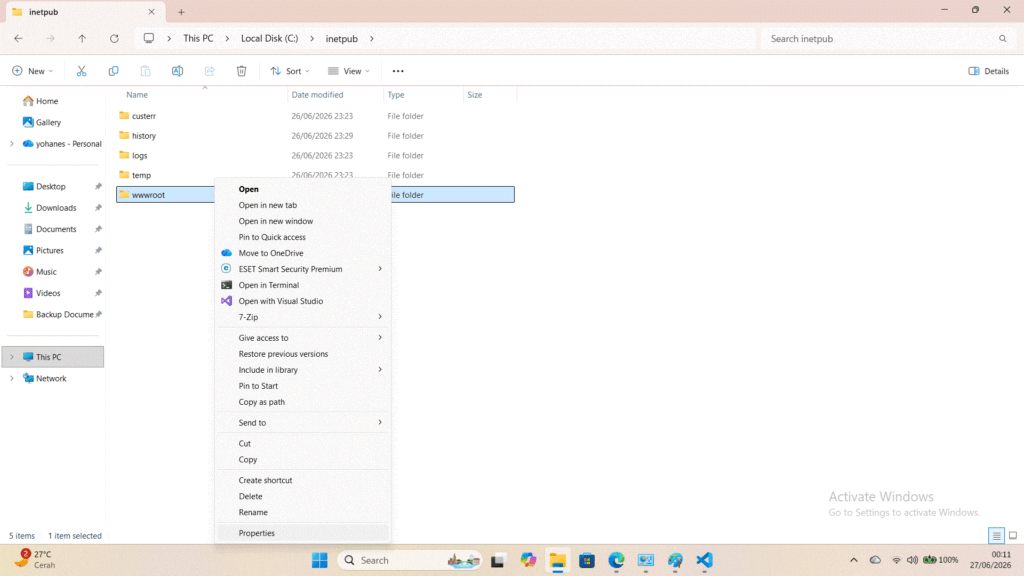
ADD YOUR OWN USERNAME SO IT HAS WRITE ACCESS TO c:\inetpub\wwwroot
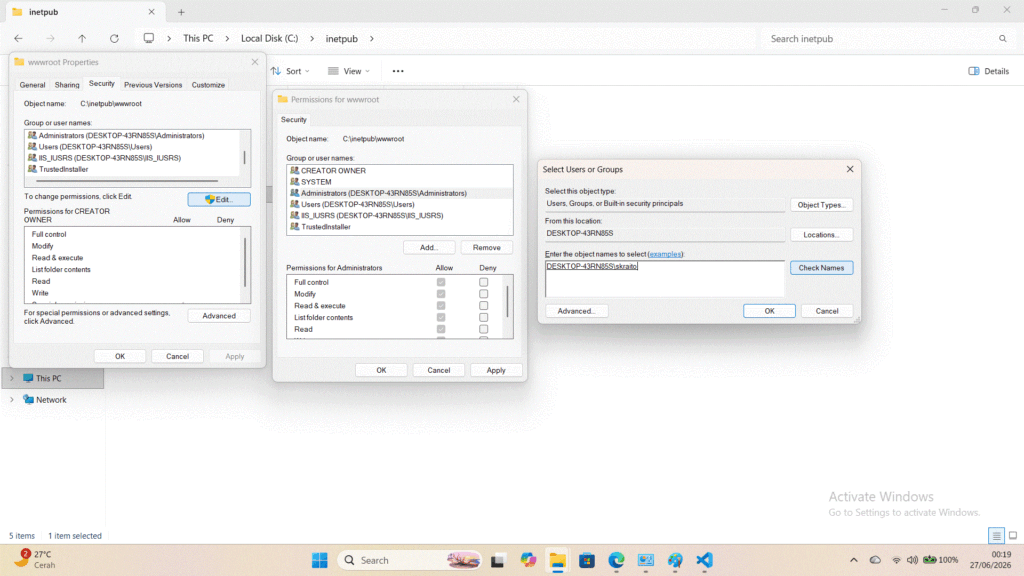
ENTER YOUR OWN USERNAME FOR YOUR WINDOWS USER THEN PRESS CHECK NAMES
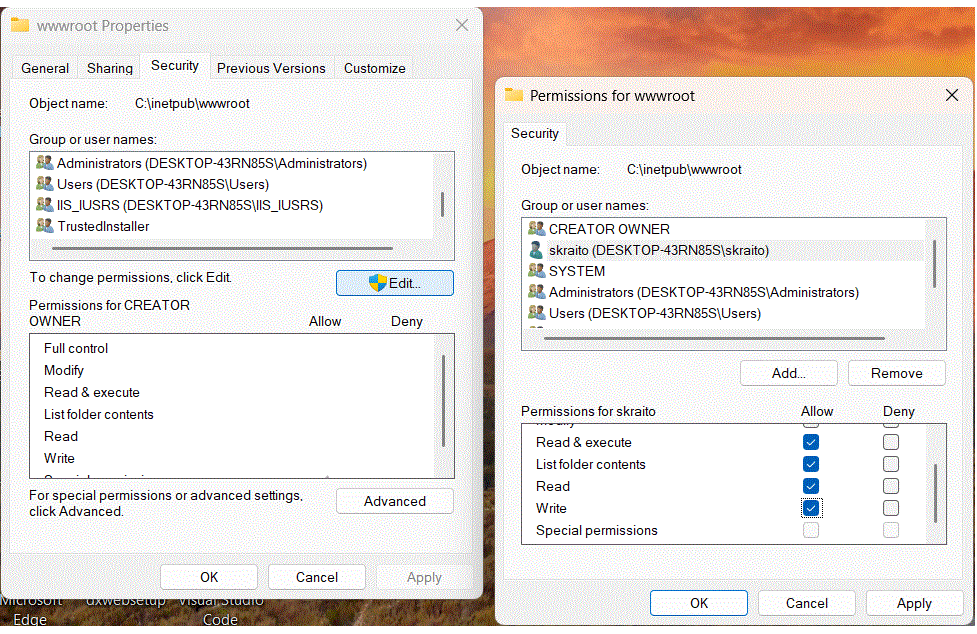
CLICK ON WRITE PERMISSION SO YOU HAVE WRITE ACCESS TO THE FOLDER … . IN MY CASE I AM ADDING USER SKRAITO SO I CAN POST WORDPRESS TO c:\inetpub\wwwroot\wordpress … .
ONCE YOU ARE DONE REMOVE THE USER FROM AUTHENTICATION … .
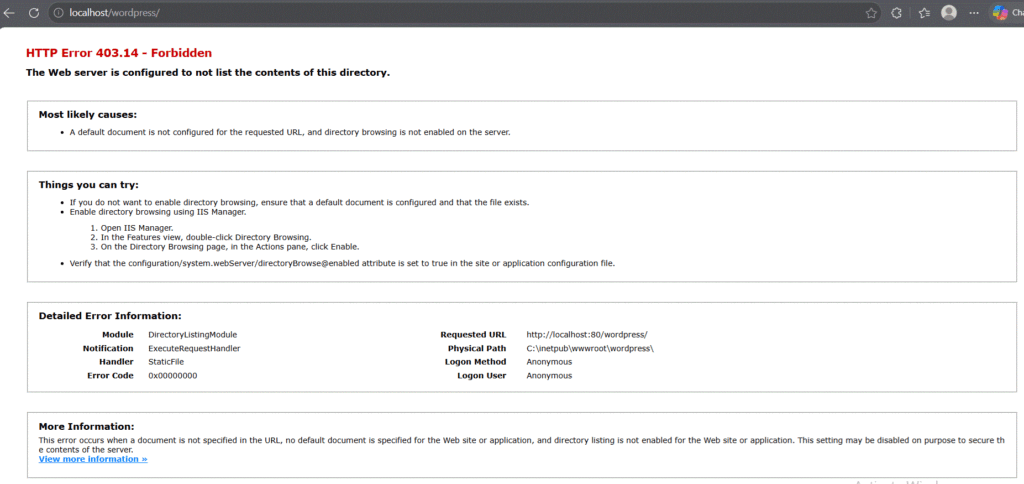
NOW TIME TO SETUP OUR DEFAULT SERVER TO c:\inetpub\wwwroot\wordpress … .
Configure IIS and Run the Installer
- Open the IIS Manager and expand the connections pane to find Sites.
- Right-click Sites and select Add Website.
- Enter a Site name (e.g.,
MyWordPressSite), set the Physical path toC:\inetpub\wwwroot\wordpress, and assign your server’s IP address and Port (80 or 443). - Open a web browser on the server and navigate to
http://localhost/wordpress(or your assigned domain/IP). - Follow the onscreen WordPress Installation Screen to set your Site Title, Admin Username, and Password.
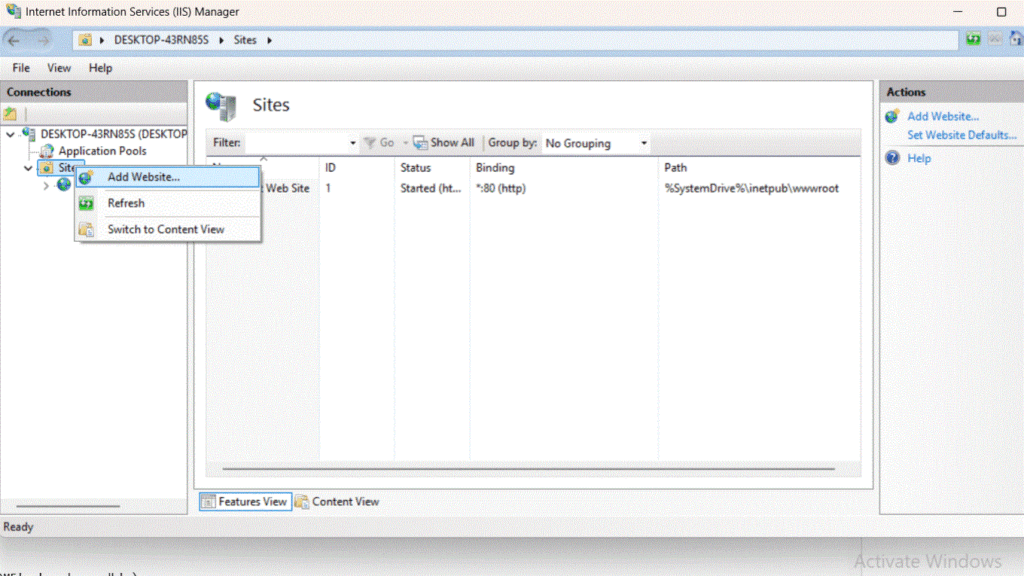
LAST STEP :
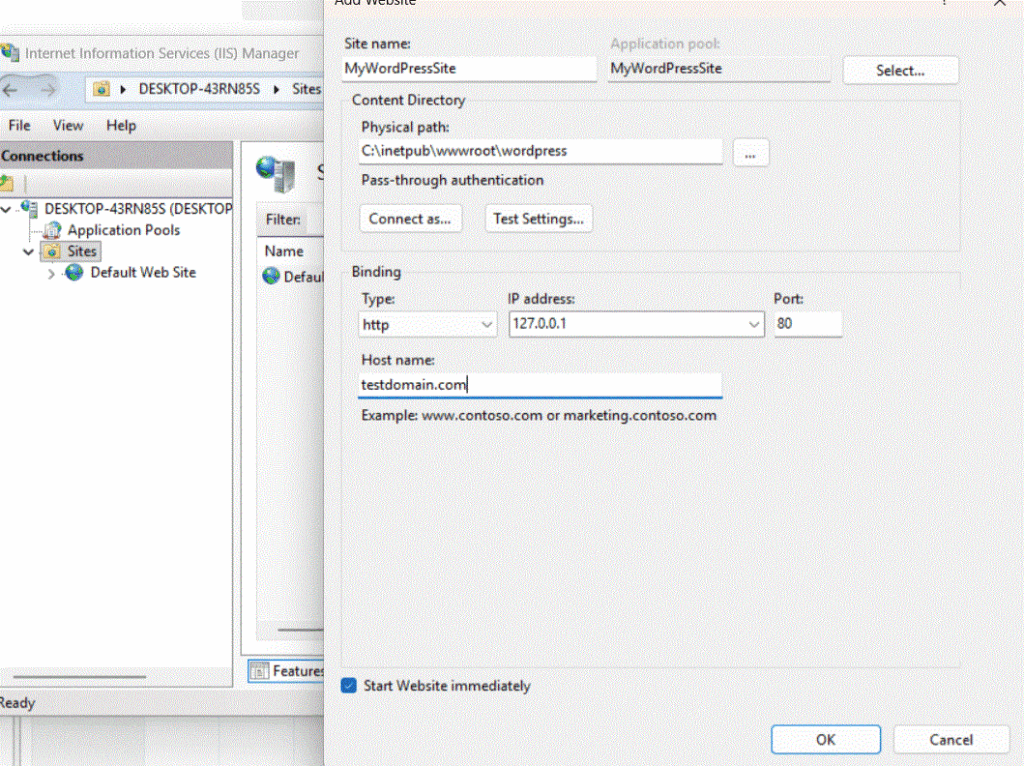
WHEN YOU ALREADY SETUP DNS TO POINT TO YOUR TESTDOMAIN.COM THEN FILL IN … . IF YOU DON’T PROPERLY CONFIGURE DNS TESTDOMAIN.COM WILL OPEN TO OTHER SITE SO BE CAREFULL , JUST BLANK THE HOST NAME BEFORE YOU PUT THE REAL IP ADDRESS FOR YOUR DOMAIN … .
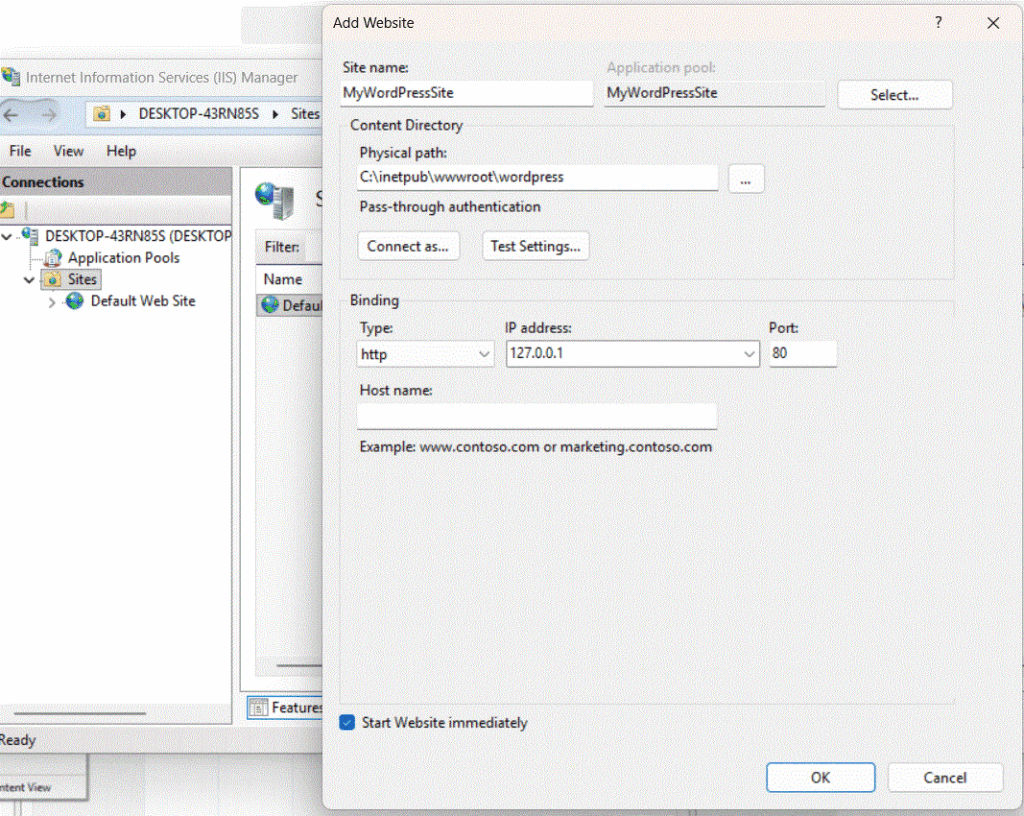
FINAL LOOK AT http://localhost/wordpress :
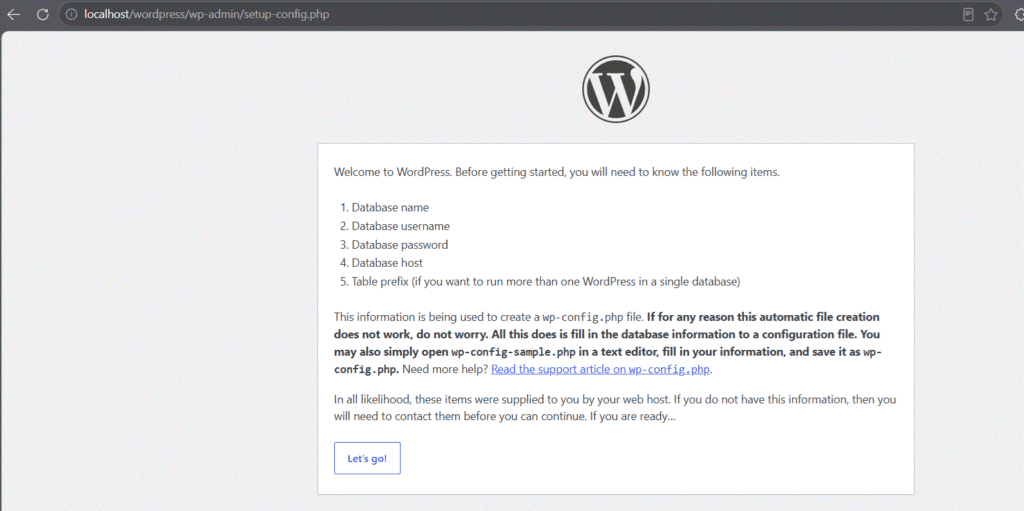
LET’S FILL IN OUR USERNAME AND PASSWORD WITH DATABASE THAT WE MAKE ON TOP :
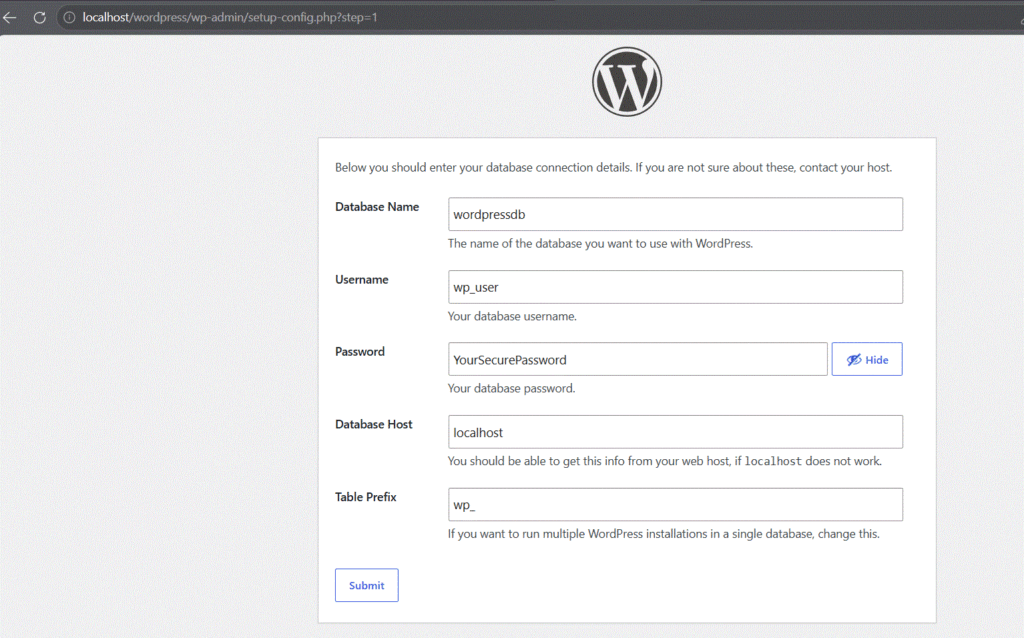
SINCE WE DON'T GIVE PERMISSION TO OUR HTML FOLDER WE NEED TO CREATE wp-config.php manually ... .

Unable to write to wp-config.php file.

You can create the wp-config.php file manually and paste the following text into it.

Configuration rules for wp-config.php:

<?php
/**
 * The base configuration for WordPress
 *
 * The wp-config.php creation script uses this file during the installation.
 * You don't have to use the website, you can copy this file to "wp-config.php"
 * and fill in the values.
 *
 * This file contains the following configurations:
 *
 * * Database settings
 * * Secret keys
 * * Database table prefix
 * * ABSPATH
 *
 * @link https://developer.wordpress.org/advanced-administration/wordpress/wp-config/
 *
 * @package WordPress
 */

// ** Database settings - You can get this info from your web host ** //
/** The name of the database for WordPress */
define( 'DB_NAME', 'wordpressdb' );

/** Database username */
define( 'DB_USER', 'wp_user' );

/** Database password */
define( 'DB_PASSWORD', 'YourSecurePassword' );

/** Database hostname */
define( 'DB_HOST', 'localhost' );

/** Database charset to use in creating database tables. */
define( 'DB_CHARSET', 'utf8mb4' );

/** The database collate type. Don't change this if in doubt. */
define( 'DB_COLLATE', '' );

/**#@+
 * Authentication unique keys and salts.
 *
 * Change these to different unique phrases! You can generate these using
 * the {@link https://api.wordpress.org/secret-key/1.1/salt/ WordPress.org secret-key service}.
 *
 * You can change these at any point in time to invalidate all existing cookies.
 * This will force all users to have to log in again.
 *
 * @since 2.6.0
 */
define( 'AUTH_KEY',         'Z%Rbu%N0<F^Wg()b$]=;JEBs|$/m^b^[xel.3NPN7~vA N9cSF((|Q8,J0jKBPdZ' );
define( 'SECURE_AUTH_KEY',  'E;9R*4S`IFYKafhs$-)cuJ]1=D{J^b# f>+1i)8X6s-V]D =W9)2*0KG#wbU{4L?' );
define( 'LOGGED_IN_KEY',    'eP@>zbYhoF8:RBUE9V0&@PJ~GO{ric!<X6y&OXs6]x4hMS9]CGmIV<8q Q4sm}8l' );
define( 'NONCE_KEY',        '0X,A*R_@;785y@l,9K)1J&~0dI^1O]v<~X][~X=<I@(GriK2>/ZhpCaFW-;%_EF2' );
define( 'AUTH_SALT',        'm:fw3aIK:lGieA6n/)}H-)f4bN}:Y*uE/>a,rcu_:]q>2SNtb?gYJEjE,/:1g)BV' );
define( 'SECURE_AUTH_SALT', 'O=ztg<}ray>w6`/XgI<$,bOm~FEL.fdpB* {Em3T%G4#F[DJQCrZg^*ccL9*I-#F' );
define( 'LOGGED_IN_SALT',   '|_<5xhx[=#Vw7M)hsq;ADDB-:xog9T!Cxh>p5JtT{_+w-,ffPW,us8bb<fX8dG{}' );
define( 'NONCE_SALT',       ']lToKnaAtvX0DHFfYbW/.00>L[|t%Qfl}>oC|h9zWD4#1:G*Xw#(Ez4;n[!mZA^i' );

/**#@-*/

/**
 * WordPress database table prefix.
 *
 * You can have multiple installations in one database if you give each
 * a unique prefix. Only numbers, letters, and underscores please!
 *
 * At the installation time, database tables are created with the specified prefix.
 * Changing this value after WordPress is installed will make your site think
 * it has not been installed.
 *
 * @link https://developer.wordpress.org/advanced-administration/wordpress/wp-config/#table-prefix
 */
$table_prefix = 'wp_';

/**
 * For developers: WordPress debugging mode.
 *
 * Change this to true to enable the display of notices during development.
 * It is strongly recommended that plugin and theme developers use WP_DEBUG
 * in their development environments.
 *
 * For information on other constants that can be used for debugging,
 * visit the documentation.
 *
 * @link https://developer.wordpress.org/advanced-administration/debug/debug-wordpress/
 */
define( 'WP_DEBUG', false );

/* Add any custom values between this line and the "stop editing" line. */


/* That's all, stop editing! Happy publishing. */

/** Absolute path to the WordPress directory. */
if ( ! defined( 'ABSPATH' ) ) {
	define( 'ABSPATH', __DIR__ . '/' );
}

/** Sets up WordPress vars and included files. */
require_once ABSPATH . 'wp-settings.php';
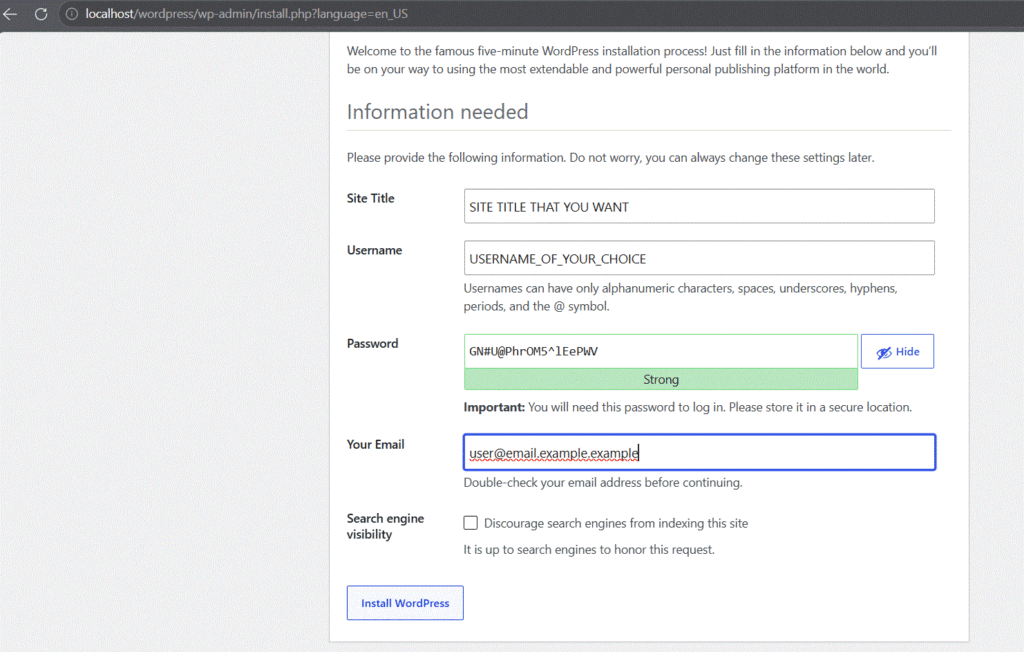
USERNAME : USERNAME_OF_YOUR_CHOICE
PASSWORD : GN#U@PhrOM5^lEePWV
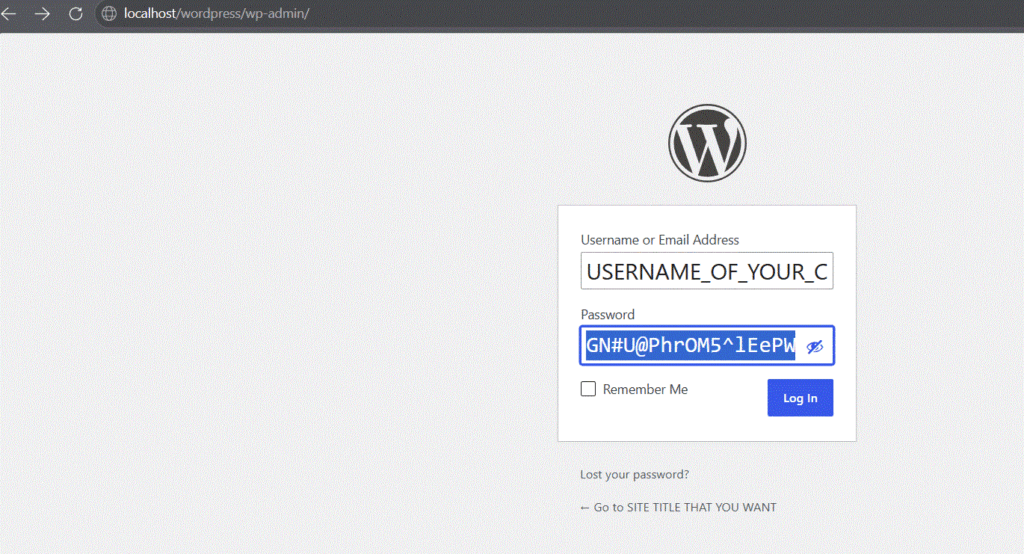
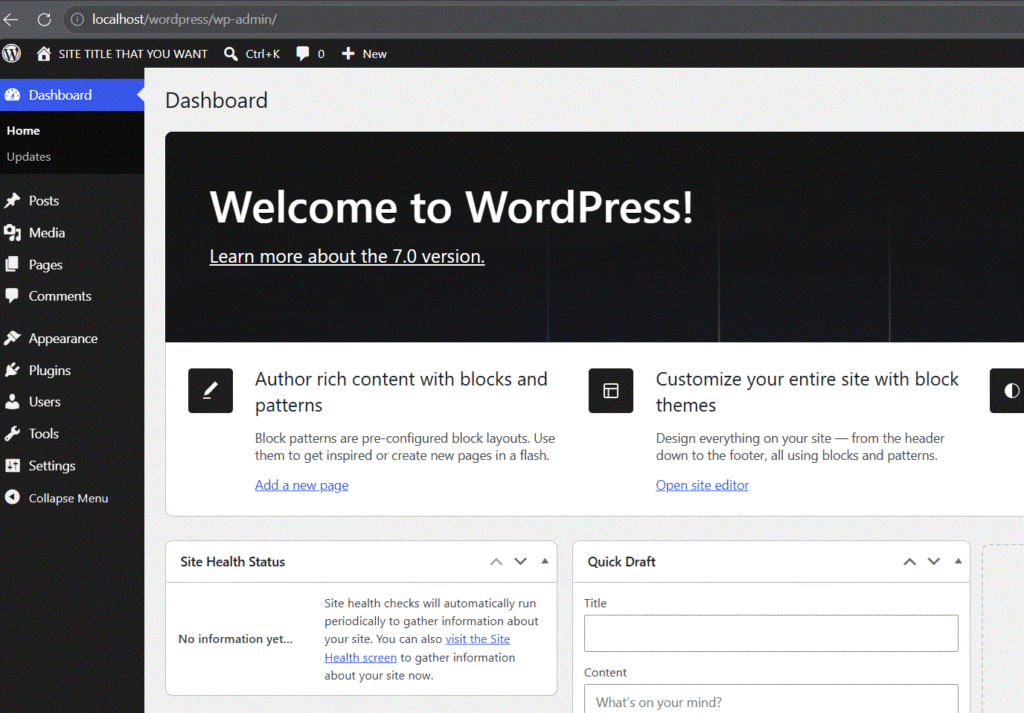
FINALLY WE SEE THE ADMIN PANEL :
MANUALLY EDIT WP-CONFIG.PHP : Prepare WordPress Files
- Download the latest source files directly from WordPress.org.
- Extract the ZIP archive. Move the entire contents of the
wordpressfolder into your web root directory (typicallyC:\inetpub\wwwroot\wordpress). - Locate the file named
wp-config-sample.phpin your WordPress directory and rename it towp-config.php. - Open
wp-config.phpin a text editor like Notepad. Update the database name, user, and password to match the credentials you created in - Step 2:php
define( 'DB_NAME', 'wordpressdb' );define( 'DB_USER', 'wp_user' );define( 'DB_PASSWORD', 'YourSecurePassword' );
THIS THESIS HAS BEEN TEST UNDER WINDOWS 11 ENTERPRISE … .
NOW TIME TO ADD SSL FROM ZEROSSL … .
Generate and Validate ZeroSSL Certificate
- Get a Certificate: Log into the ZeroSSL Dashboard and click New Certificate. Enter your domain name and choose the 90-day free option.
- Perform HTTP Validation:
- ZeroSSL will provide an authentication text file.
- On your Windows Server, navigate to your WordPress root directory (
C:\inetpub\wwwroot\wordpress). - Create a folder path named
.well-known\pki-validation. Note: Windows Explorer may require you to name it.well-known.(with a trailing dot) to register the leading dot. - Place the ZeroSSL text file inside the
pki-validationfolder.
- Verify and Download: Click Verify Domain in your ZeroSSL Dashboard. Once verified, download the certificate zip file and select the IIS server format if available, or download the default format containing
certificate.crt,private.key, andca_bundle.crt
Phase 3: Convert and Install the Certificate in IIS
IIS requires a .pfx bundle file rather than separate .crt and .key files. You can merge them using OpenSSL via the command prompt:
cmd
openssl pkcs12 -export -out certificate.pfx -inkey private.key -in certificate.crt -certfile ca_bundle.crt
Use code with caution.
- Import to IIS:
- Open IIS Manager and click on your root server node.
- Double-click Server Certificates.
- Click Import in the right-hand Actions pane.
- Browse to your generated
certificate.pfxfile, provide the password you set during creation, and set the certificate store to Web Hosting.
- Bind HTTPS to your Site:
- Expand Sites in IIS Manager and select your WordPress site.
- Click Bindings in the right-hand pane.
- Click Add. Set the Type to https, Port to 443, and input your Host name.
- Select your newly imported ZeroSSL certificate from the dropdown list and click OK.
Phase 4: Configure WordPress for HTTPS
- Update WordPress URL: Log into your WordPress dashboard, navigate to Settings > General. Change both the WordPress Address (URL) and Site Address (URL) protocols from
http://tohttps://. - Force HTTPS Redirect: To ensure all unsecured traffic redirects automatically, you can install the Really Simple Security Plugin via WordPress or use the WP Force SSL Plugin to handle structural site redirection automatically.
FINISH OF TUTORIAL … .
TEST AND WORK AT WINDOWS 11 ENTERPRISE … .
IF YOU ENCOUNTER ISSUE OR NEED SUPPORT LEAVE COMMENT OR LIVE CHAT … .
ALL FILE NEEDED IS AT :
https://drive.google.com/drive/folders/1AewvBCiN-oc9vkRJH7l-FoPrTpwjKt-R?usp=sharing
IT INCLUDE PHP.INI SO JUST COPY PHP.INI TO C:\PHP FOLDER … .