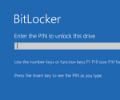
To set up BitLocker with a password or PIN on Windows 11 (Pro, Enterprise, or Education editions), you must first configure a group policy if it is for your main operating system drive. For removable USB drives, you can add a password directly through File Explorer.
Setting a Startup PIN/Password for the C: Drive
If you want your computer to ask for a password or PIN every time it boots up:
- Press
Win + R, typegpedit.msc, and press Enter to open the Local Group Policy Editor. - Go to Computer Configuration > Administrative Templates > Windows Components > BitLocker Drive Encryption > Operating System Drives.
- Double-click Require additional authentication at startup and set it to Enabled.
- Make sure Allow BitLocker without a compatible TPM is checked if needed.
- Open the Control Panel, search for BitLocker Drive Encryption, and click Turn on BitLocker for your OS drive to set your PIN or password.
Adding a Password to a USB or External Drive
If you want to protect a removable flash drive or external hard drive with a password:
- Plug the USB drive into your PC.
- Open File Explorer, right-click the external drive, and select Turn on BitLocker.
- Choose Use a password to unlock the drive and enter your secure password.
- Save or print your BitLocker recovery key in case you lose the password.
- Choose how much of the drive to encrypt and click Start encrypting